Guide, for the Deal team
Import documents from Google Drive or Dropbox
Bring files into the dataroom straight from cloud storage, with the same review step as an upload.
Where: Raise hub, Dataroom
Open the import dialog
In the dataroom press Import from cloud. The Sources rail on the left lists Google Drive and Dropbox, each with a Connect button.
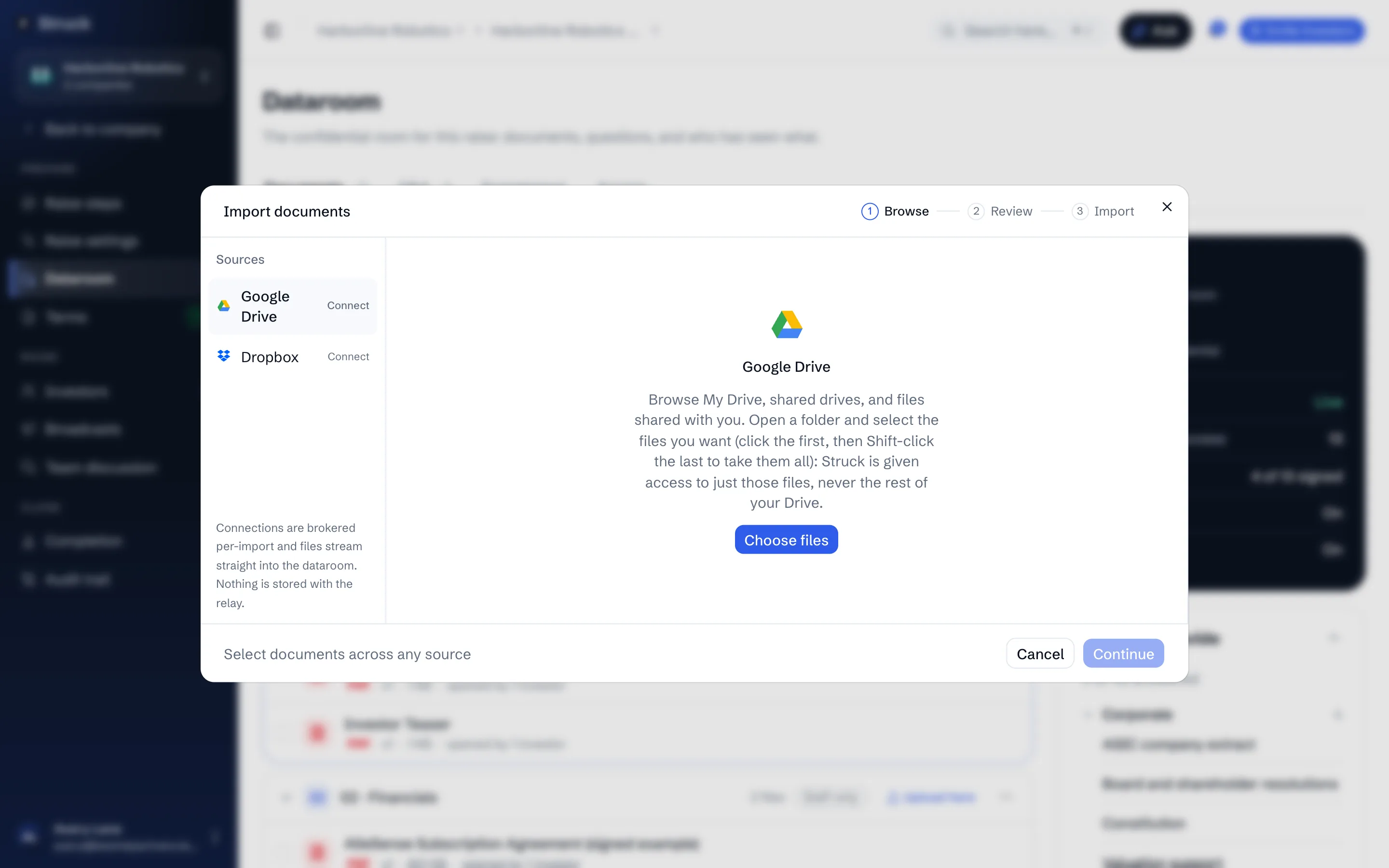
Connect Google Drive and pick files
Choose Google Drive, then Choose files. Google's own picker opens over the page and shows My Drive, shared drives and files shared with you. Open a folder and select the files you want; hold Shift or Command to select several at once.
Folders can be opened but not selected. Struck asks Google for access to only the files you pick, never your whole Drive, and that permission is granted one file at a time. To move a whole folder, select all the files inside it.
The first time, Google asks you to sign in and approve access for Struck. The consent screen says it applies to only the files you select.
Connect Dropbox and browse
Choose Dropbox, then Connect to Dropbox. A Dropbox window asks you to sign in and approve read access for Struck. Once connected, your folders appear in a file table inside the dialog; open them and tick the files you want. Team folders are included.
Review before they land
Press Continue. Each chosen file gets a Name, a Type, a destination Folder and the same Access switches as an upload. Press Import and the files stream from the provider into the dataroom; nothing is kept in between.
Disconnect on a shared machine
A connection is remembered on the computer you used, so the next import skips the sign-in. Disconnect in the Sources rail forgets it, and for Google Drive also revokes the grant at Google's end.
Read next
- How the dataroom protects documentsHow it works