Guide, for the Investor
Accept an invitation and invest
From the invitation email to money sent: the NDA, your profile and certificate, the amount, the pack you sign and the payment you make.
Open the invitation
The invitation comes from whoever invited you: an email from them via Struck, which you can reply to, or a link in an email from them directly. Struck's email is headed You're invited, names the company and the close date, and carries their note. Press Review the invitation, or open the link. If you have no account yet you create one with your email already filled in; the invitation attaches itself to that address. Keep that address: an account under a different one can't see the raise until the company invites the new address, and the form says so if you change it.
Enter the dataroom
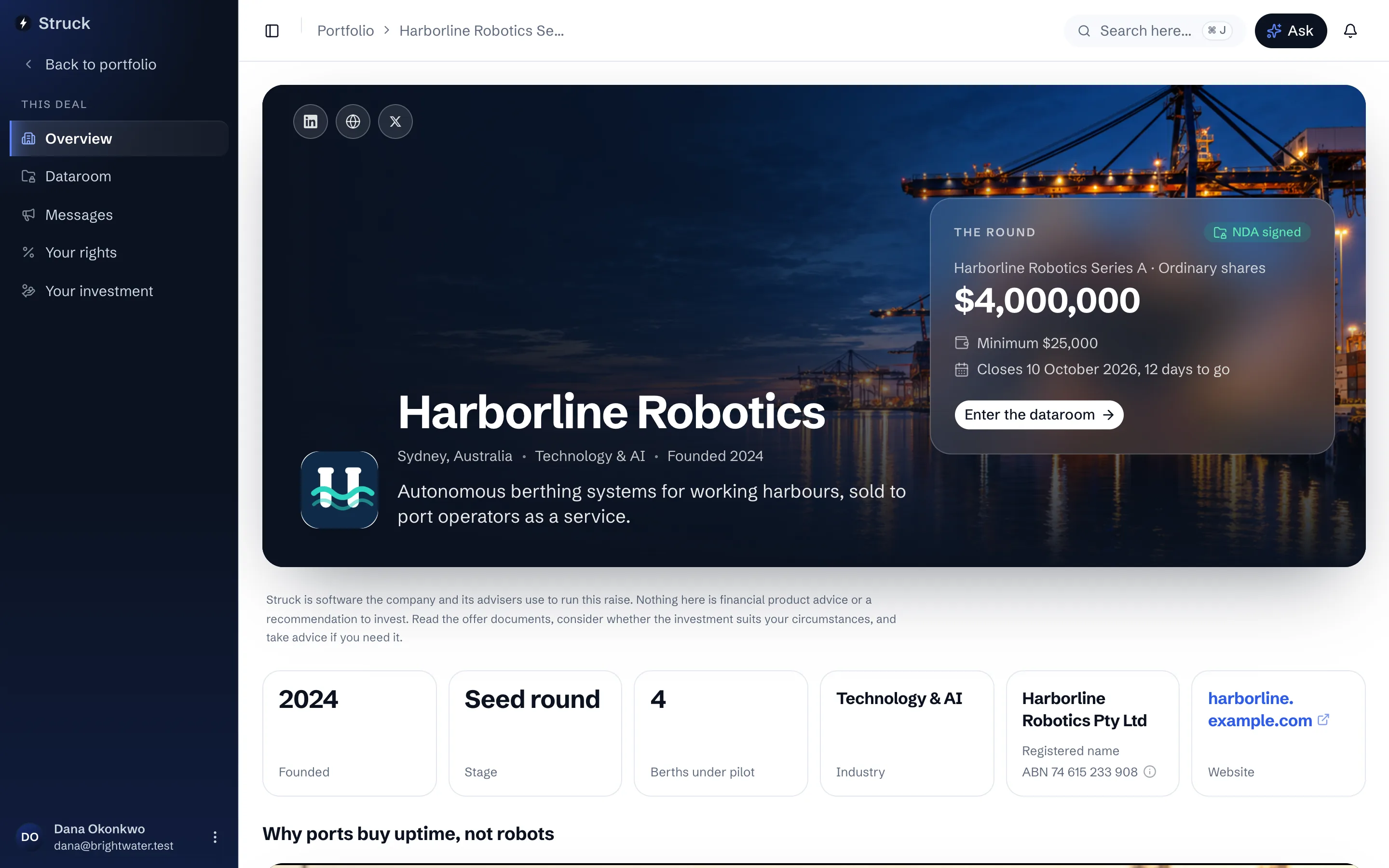
You land on the raise overview: the company's story and the key facts. Review and enter the dataroom opens the room. Folders the company marked as a teaser are readable straight away; the rest wait behind the NDA.
Accept the NDA
The non-disclosure agreement is shown in full, with View NDA and Download beside it. Press I agree, accept NDA, or the entity wording if you are investing through a company or trust. If your organisation signed an NDA on paper instead, Upload a signed copy sends it to the deal team to accept.
Complete your investor profile
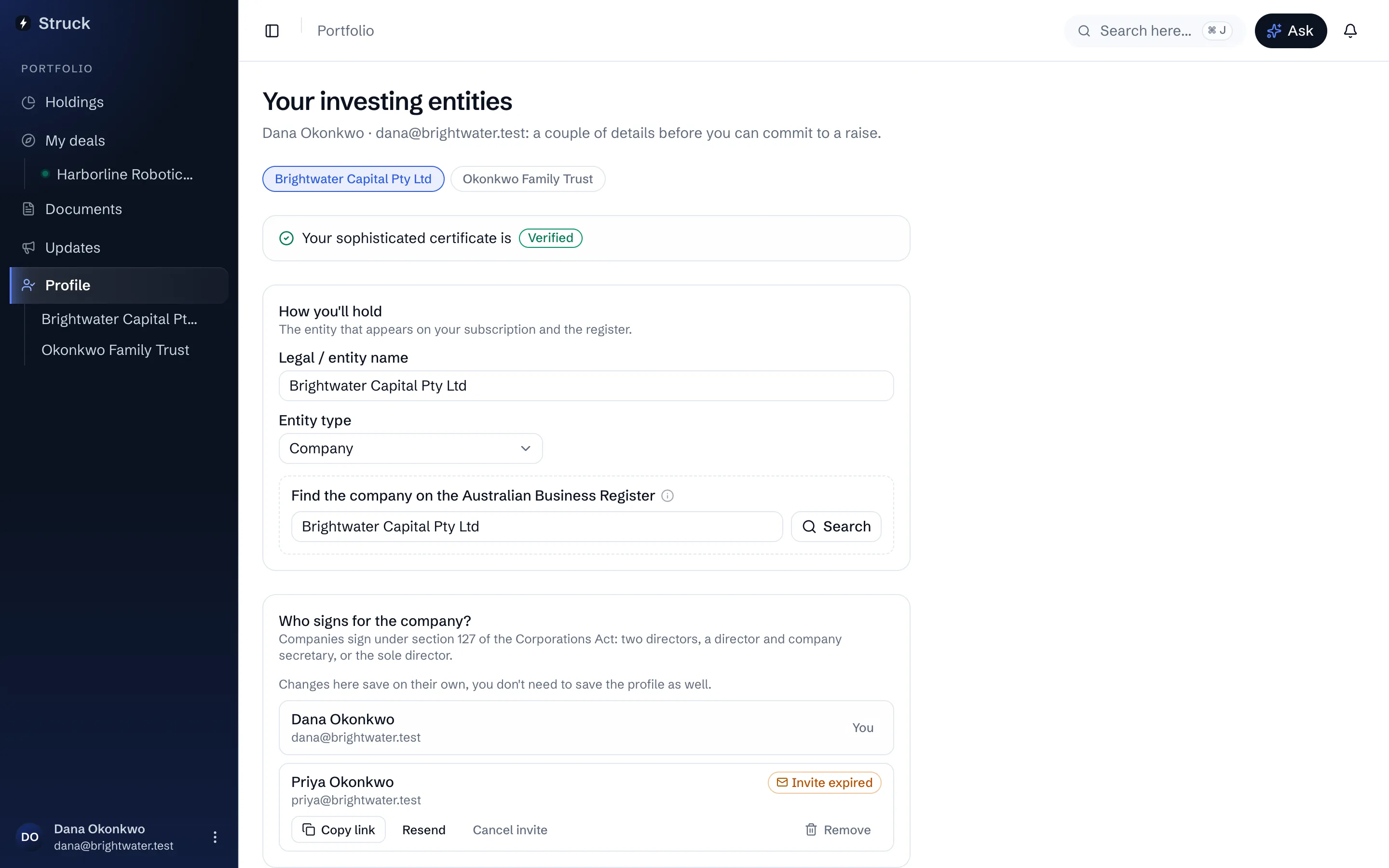
Before committing, Your investor profile asks how you will hold the shares (personally, through a company, or a trust), the legal name that goes on the agreement and the register, and who signs for the entity. If you manage a company or trust without being one of its directors or trustees, untick I sign for this and add the people who are: they sign the agreement, and you still manage the rest. Under Colleagues who can view, Add a colleague brings in someone who should see what the entity sees, such as an analyst: they are emailed an invitation, and can read the room and the holdings but can't sign, accept the NDA or commit money for it. Remove takes them off at once. Holding personally and acting for an entity are separate profiles, each with its own certificate and holdings.
Sort out your s708 certificate
Most raises are open only to sophisticated investors under s708. Under Investor certification choose your Classification, then either Ask your accountant to certify you, which emails them a link to complete and sign the certificate online, or upload a certificate you already hold. The deal team verifies it and it is reused on that company's next raise while it is current. Each company you invest with keeps its own profile for you, so when a second company invites you, open its profile (marked to finish) and press Copy to fill it from the one you have already finished. That company's team reviews the certificate again. If a team can't accept a certificate, you're emailed with their reason and your profile shows Not accepted: upload a new one, or ask your accountant, and it goes back for review. If an advisory firm has asked for your certificate, it is listed under Certificate requests with a Share button. The firm sees it only once you press Share, and Stop sharing takes it back.
Read, ask, and indicate an amount
Read the room; every page you open is logged for the company, and the pages carry your email as a watermark. An Excel model opens as a live model: change any blue figure and the rest recalculates, so you can try your own assumptions without leaving the room. Your changes stay on your screen and the company doesn't see them; Pages at the top shows the model as printed. Where the company allows it, a spreadsheet also has a Download button, so you can work it in Excel; the copy carries your email in its properties. Questions go through Q&A, privately to the deal team, and answers the company publishes are shared with every investor without naming who asked. If you have asked the room's AI a few questions and still want the company's answer, press Follow up with the company under the last answer: every question you asked lands in Q&A, numbered, ready to edit and send. When you are ready, open Your investment, enter an Amount and press Indicate interest. An indication is not binding.
Accept your allocation
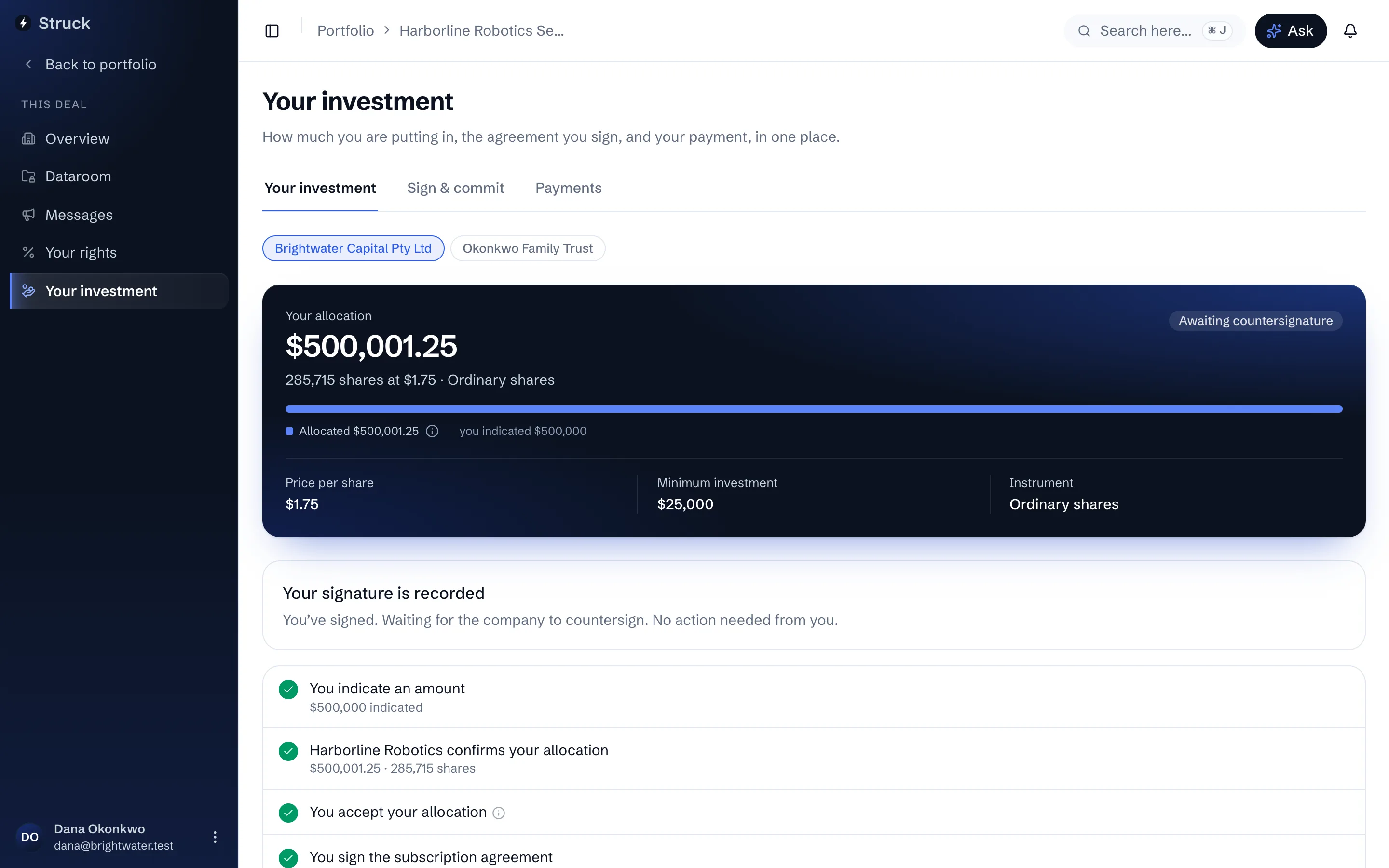
The company confirms what you actually get, by email and on Your investment. Press Accept, or Ask for a different amount if the figure is not right. Your accepted amount is what the pack is drawn for, and it can't be signed until you accept. If the company changes the figure later, you accept the new one before signing.
Sign the pack
On Sign and commit, open your pack and press Sign electronically. The subscription agreement is filled with your details and amount; a trust or company pack may carry several signers and stays open until the last has signed. The company then countersigns, and only then is the subscription binding.
Pay the company directly
After countersignature you receive a payment instruction with the amount, the company's account, your own reference and a due date. Pay from your own bank; Struck never holds the money. Press Mark payment sent once you have, so the company knows to look for it. When the company records the money as received you are emailed a receipt, and the same receipt can be downloaded from Receipt on your payment. When the raise completes, your certificate and executed documents appear under Holdings and Documents.
Read next
- The raise landing investors arrive atHow it works
- Your investor profileHow it works
- The s708 caps in practiceHow it works
- Your holdingsHow it works
- Your executed documentsHow it works