Guide, for the Company
Set up the company and import its register
Create the company, bring in the existing cap table from a spreadsheet, and invite the team.
Where: Company hub, Register
Choose the lane
After creating an account, Start asks what you are here to do. Raise for your company sets up your own company. Advise on raises sets up a client's company in your firm's workspace, to be handed to the founder later. The wizard has four steps: Company, Cap table, Team, Done.
Enter the company details
First, Where is the company incorporated? Pick the country the company is registered in, not where you live. For an Australian company Struck keeps the register, the filings and the offer rules. A company registered anywhere else is workspace only: the dataroom, NDA, Q&A, pitch and signing of your lawyer's documents, with no cap table step, and it asks for the registrar's number instead of an ABN.
Company name is the only required field. To save typing, search for the company by name, ABN or ACN under Find it on the Australian Business Register and pick it from the list: that fills in the legal name and the ABN exactly as the register holds them, and an empty Company name with the short form (Canva Pty Ltd becomes Canva). A Logo, Legal name, ABN or ACN, Website and when you want to raise are optional, and everything else about the company lives under Settings later. Press Continue.
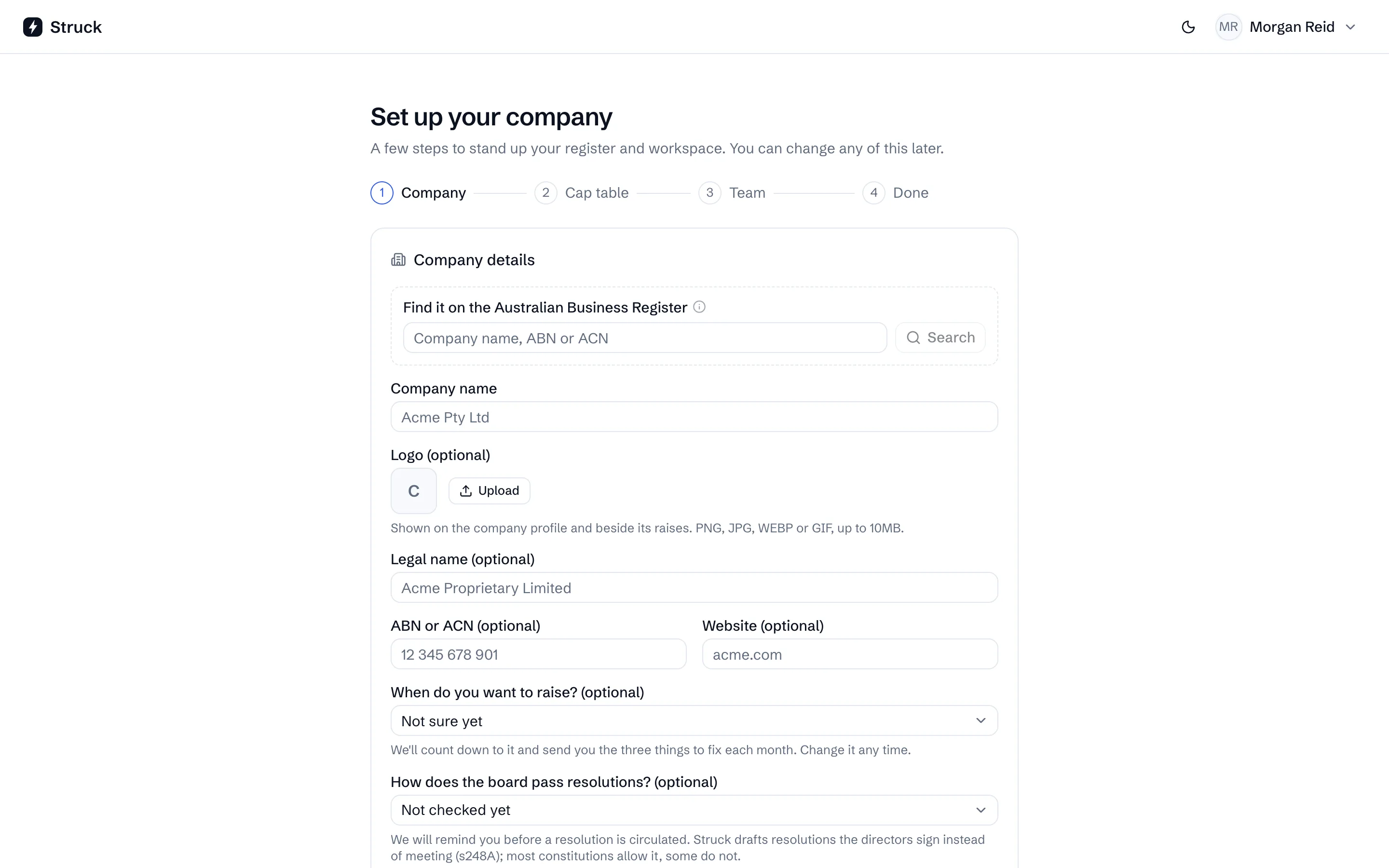
Import the existing cap table
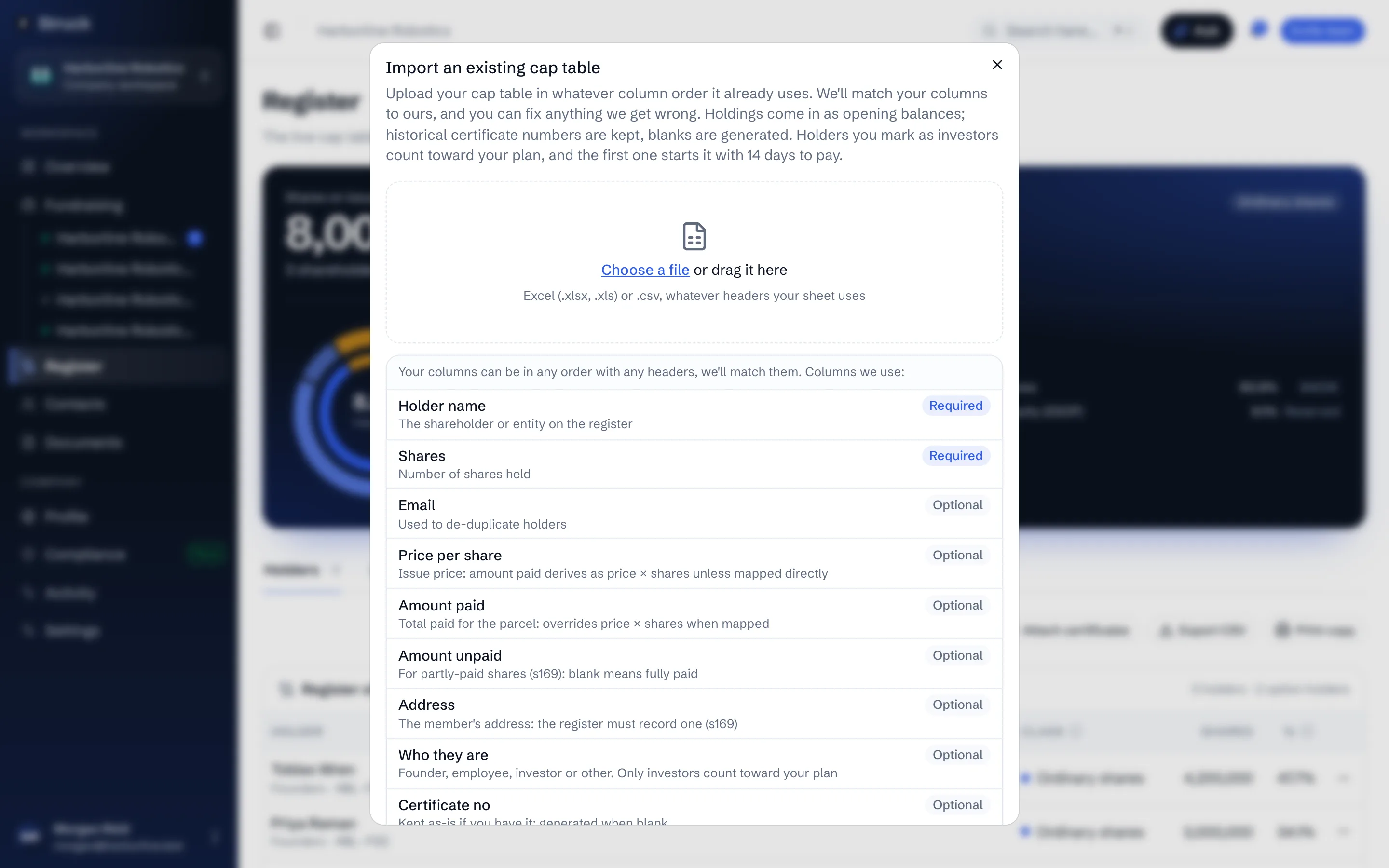
Choose a file, or drag a spreadsheet onto the page, or paste rows straight from your sheet and press Load pasted data. Tick First row is a header row if it is, then Match your columns: Holder name and Shares are required, and Email, Price per share, Amount paid, Amount unpaid, Address, Who they are, Certificate no, Share class, Round and Issue date are matched where you have them. A certificate number is kept as-is when you have one and minted when the cell is blank.
Who they are says whether each holder is a founder, employee, investor or other. Map a column that says so, or choose Fixed value to give every row the same answer. Holders marked as investors count toward your plan, and the first one starts it with 14 days to pay. A holder left as Not stated never counts, and can be marked later from Edit holding.
The Preview table shows every holding as it will be recorded. Under Tell the shareholders?, Don't tell anyone (the default) records the register without emailing anybody; Invite them to Struck also sends each holder with an email and no account one invitation to sign up and see their holding. Press Import when it reads right. Skip, import later from the Register is there if the sheet is not to hand.
Every row imports as Ordinary shares unless you map a Share class column. Classes are added and renamed on the Register afterwards with Add a share class.
Invite the team, or the founder
Invite your team takes an email, a name and a role: Admin manages the company, its raises and team, and View-only reads. Setting up a client's company asks instead for the founder's email; Invite the founder creates a claim link that hands the company, its register and its workspace to them when they accept, and the link is valid for 14 days. A founder who signs up without the link, with the same email, is offered the company as soon as they land. The founder invites their own team after that; until the hand-over, the company's Team settings point there instead.
Check the register
The Done step opens the Register, the Profile and the Team. On the Register of members, each holder expands to their parcels with a certificate number, and the footer shows total shares on issue. Anything the import got wrong is corrected from Edit holding; a changed share count files a ledger entry rather than rewriting history. If the sheet gave one total per holder, Record a past round then attaches each holder's shares to the round that issued them.
Read next
- The register of membersHow it works
- Company settings and hand-overHow it works
- Starting and finding raisesHow it works