Guide, for the Deal team
Set up a dataroom
Build the folders investors expect, add the documents, and decide what sits in front of the NDA and what sits behind it.
Where: Raise hub, Dataroom
Open the raise's dataroom
In the raise's sidebar, under Prepare, choose Dataroom. The Documents tab is the room itself. Q&A, Engagement and Access sit beside it, and the same tabs serve investors, who only ever see the folders they were granted.
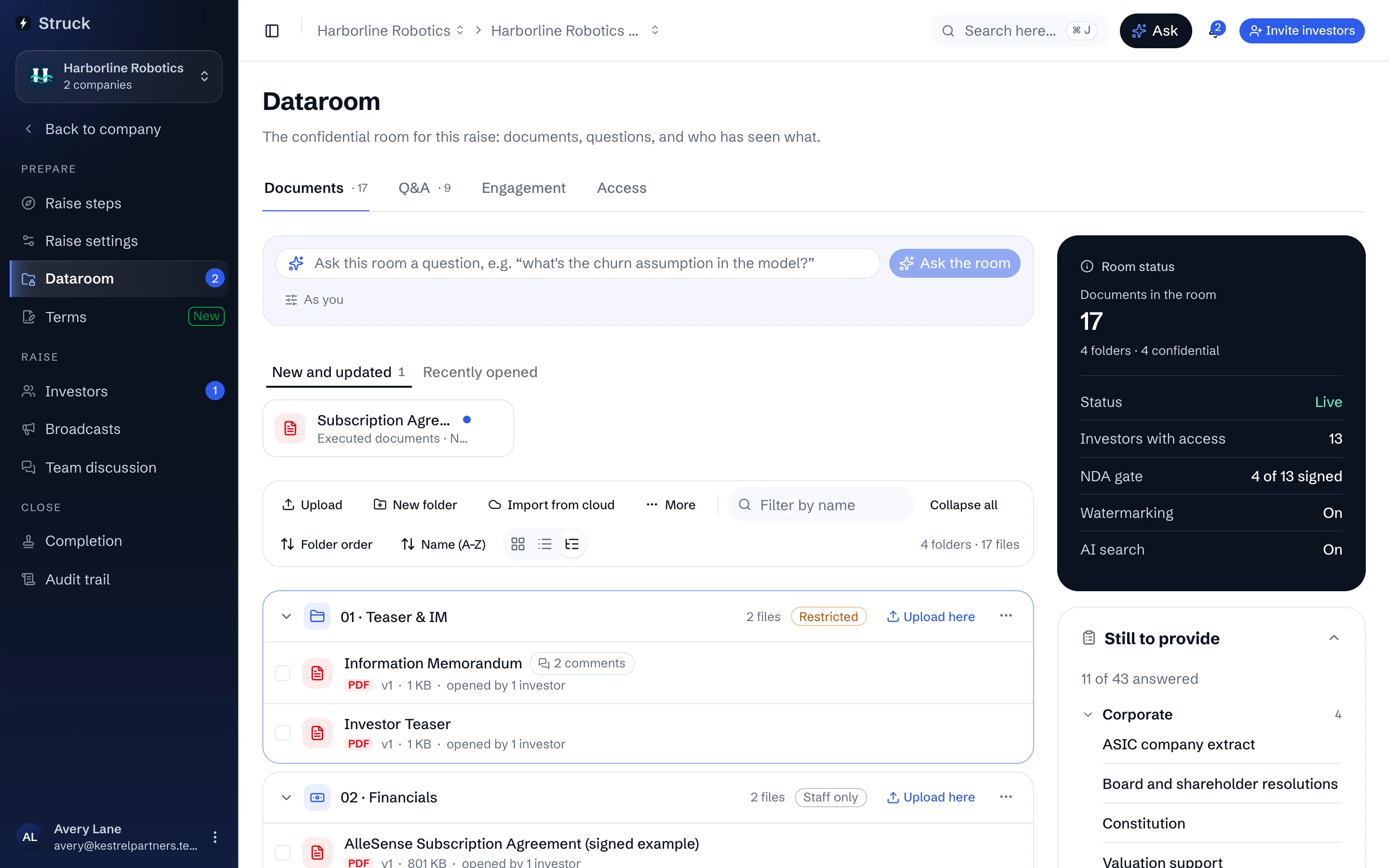
Create the folders from a template
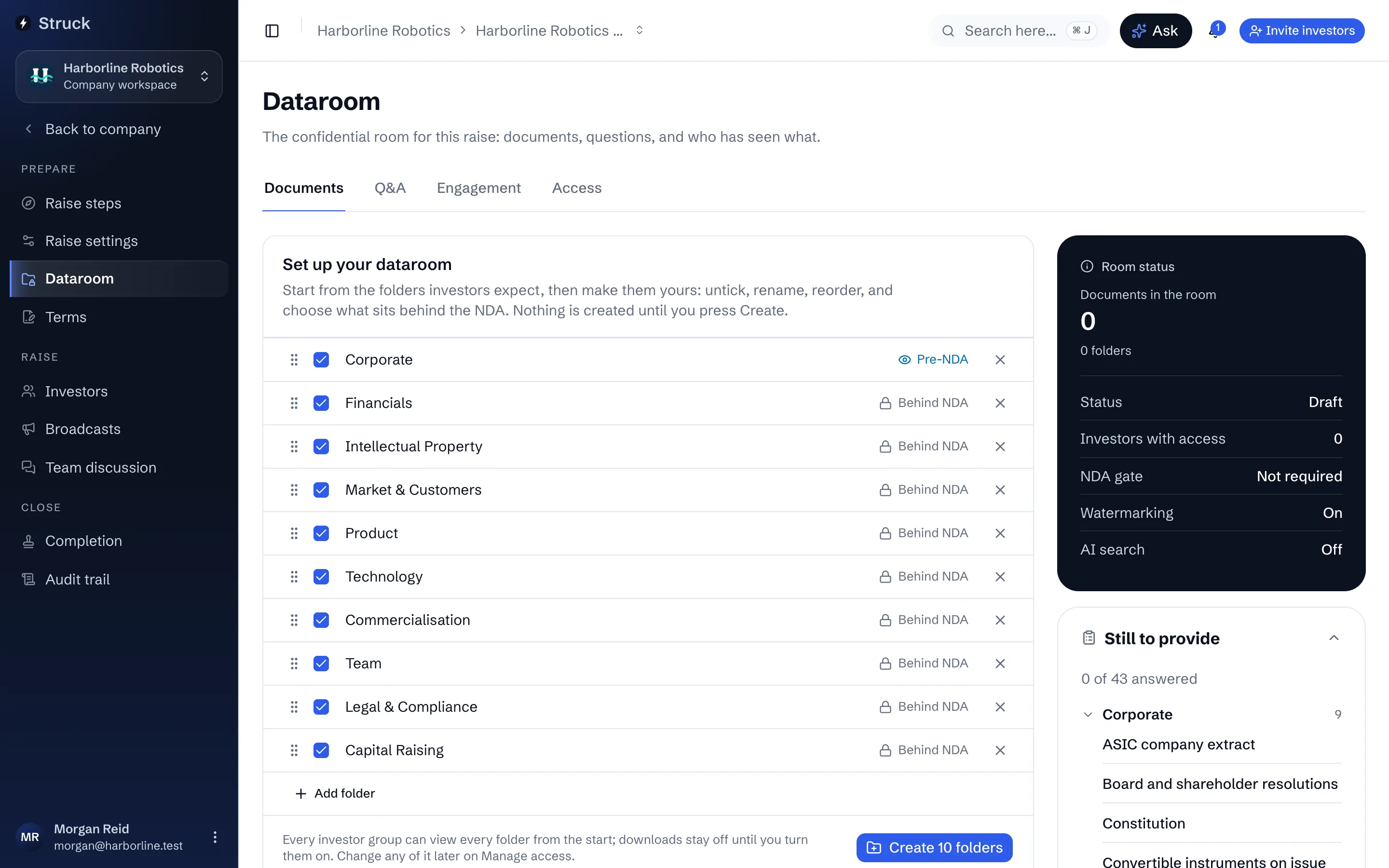
An empty room opens with Set up your dataroom: a list of the folders investors expect on an Australian early-stage raise. Pick the template that fits, rename or remove rows, drag them into order, and mark each row Pre-NDA or Behind NDA. Nothing is created until you press Create folders.
Rather build it yourself? Press New folder instead and add folders one at a time. Folders go two levels deep, and each one takes an icon from its name unless you change it. Already have the room laid out in Google Drive, Dropbox or on your computer? Skip the template and bring your own folders in, as the step after next describes.
Pre-NDA folders are the teaser tier: an invited investor can read them before accepting the NDA. Everything else waits behind the NDA gate.
Tidy the tree
Each folder's menu offers Rename, Change icon, New folder inside, Move to, Move up and Move down, and the switch between Make teaser (pre-NDA) and Move behind NDA. Folder order sorts the whole room by name or by file count in one go.
Or drag. Drop a folder onto another to put it inside, or above or below one to reorder; drop a subfolder on Dataroom in the breadcrumb to bring it back to the top. Files drag onto any folder to move, and files from your computer drop onto a folder to upload there. Hold a drag over a folder or the breadcrumb for a moment and it opens, so any folder is one drag away. Folders with files stay listed above empty ones.
Add the documents
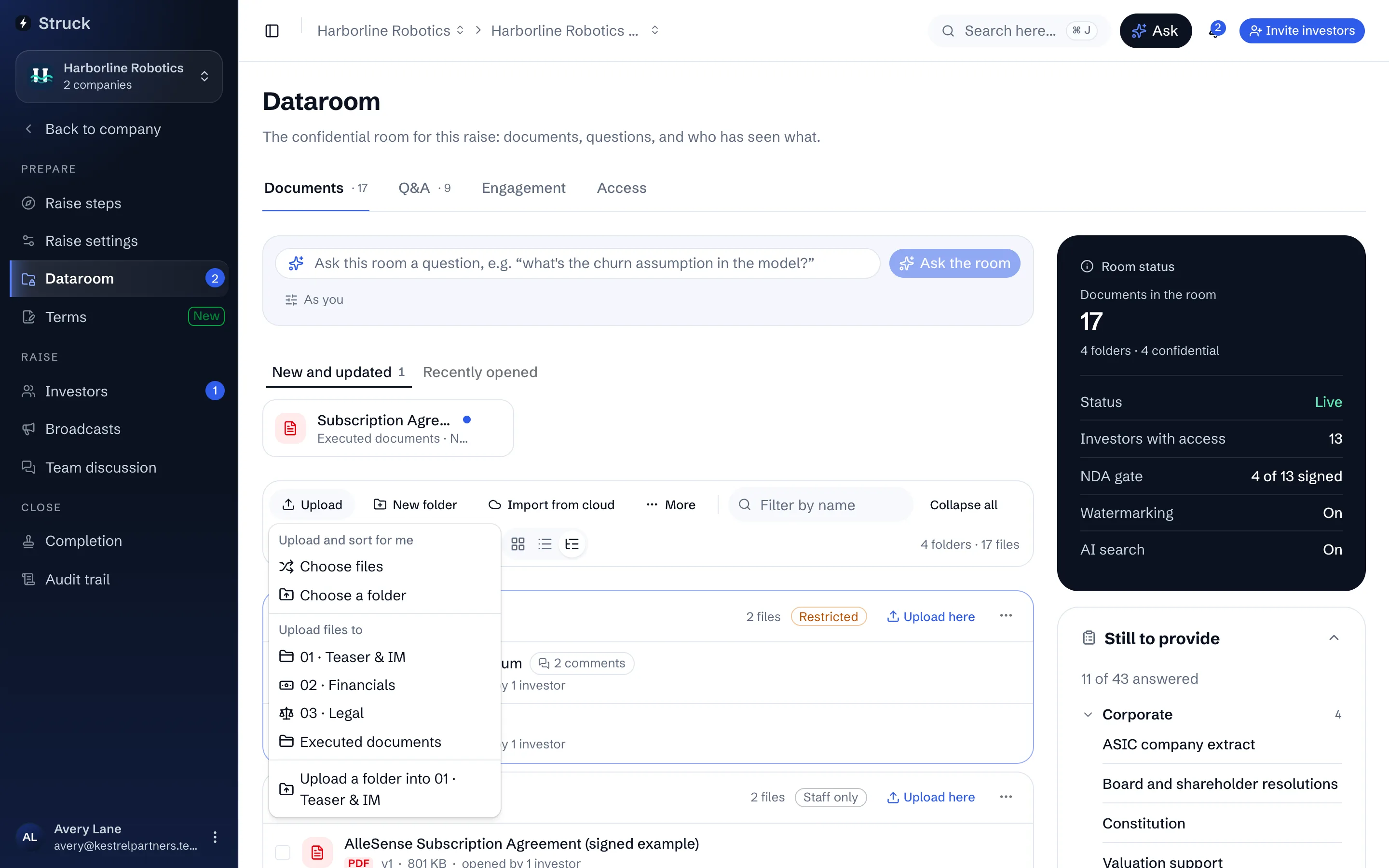
Press Upload here on a folder to add files straight to it. Or use Upload at the top of the room: Choose files or a .zip, or Choose a folder. Import from cloud pulls files straight from Google Drive or Dropbox, and Add from library copies a document already in the company's vault.
Anything more than a single file opens one dialog that asks where it goes. Keep your folders lays your own folders out as the room's: one with the same name as a folder already here, numbering aside, fills it, and the rest are created with the access you choose, which starts on for each group set to get new folders. Sort into this room's folders suggests a folder for each file (the next step but one). Put them all in one folder does what it says. To bring in a room you already keep in Drive or Dropbox, download it as a .zip and drop it anywhere on the room, or drop several folders at once. Folders go two levels deep, so anything nested deeper goes into the folder above it, and files that sat in no folder wait in To sort.
Each file can be up to 50 MB, or 2 GB for a video. A large file uploads in pieces, so a dropped connection picks up where it stopped rather than starting again. Documents, spreadsheets, slides, scans and MP4, MOV or WEBM videos are accepted; anything else has to be exported to one of those first.
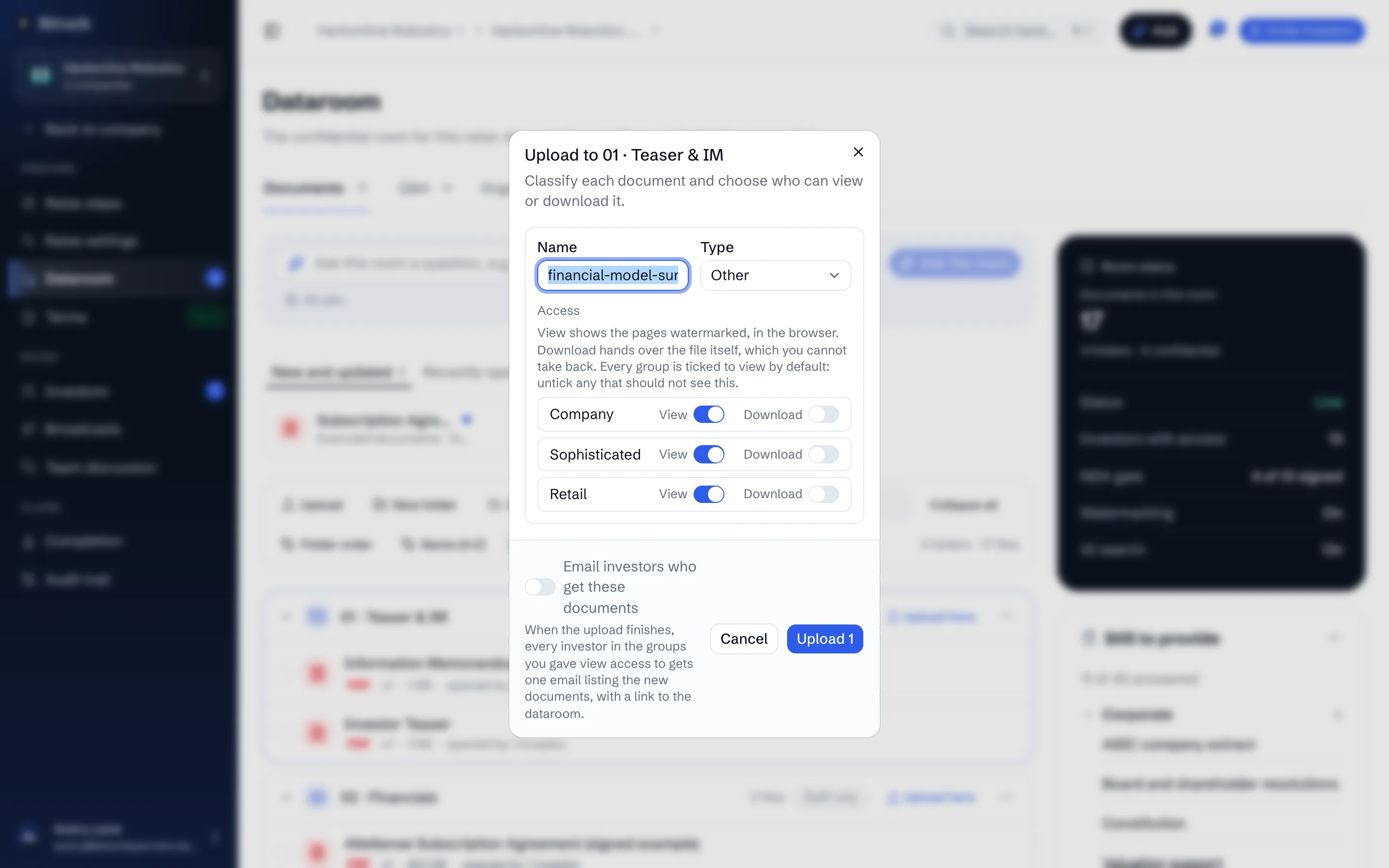
Classify each document before it lands
A single file pauses on a review step. Give it a Name and a Type, and under Access set View and Download for each investor group. A group that can already open the folder shows Opens this folder, with View on and fixed: it sees the file anyway. Every other group starts off, and switching its View on shares just this file with it. Download appears only for a spreadsheet, is off by default, and lets the group keep a copy to work the model in Excel.
Email investors who get these documents starts off. Switch it on when the room is already open and the new file matters to the people in it.
Let a batch sort itself
Choose Sort into this room's folders in the upload dialog, which is the choice already made when loose files are dropped on the room. A single file starts on Put it in a folder instead, and asks which one. So do videos on their own, which are never offered sorting, since only their names can be matched. Import from cloud sorts too: in Dropbox, Select everything here takes a folder and everything under it, and in Google Drive you open a folder and Shift-click to take all its files.
The files go to To sort instead of a folder, shared with nobody, and a folder is suggested for each: from what the file says when AI search is on, otherwise from the kind of document it is, its name and the folder it sat in.
When the panel above the room says how many files are ready, press Review and file. Files are grouped under the folder each is headed for, with any that need a folder first, and each group shows who will see it once filed. Tick a group to take it all. Weak matches start unticked. Change any folder, untick what you want to leave, then press File. Email investors who can now see these files starts off; switch it on if the room is already open.
Filing is sharing: a file takes the access of the folder it lands in. Nothing leaves To sort until you file it.
Check that AI search can read everything
With AI search on, each new file is indexed so answers in the room can quote it. The same answers are a click away from any screen of the raise: press Ask in the header and choose Dataroom documents. The panel above the room shows how many files are still being indexed, and names any that could not be read and why. A failed file is tried three times on its own, a few minutes apart; press Retry to try it again after that. A scanned PDF is read from its page images, so it can take a little longer. If a scan is too faint or blurred to read, upload a clearer copy.
Work through what is still missing
The rail beside the room keeps a Still to provide list: the information memorandum or deck, the financial model, the cap table and the subscription agreement, with a count of how many are in place. The same gaps appear on Raise steps under Ready to show investors, at the foot of Do this next, so the room is finished when that list is clear.
Check who can see which folders
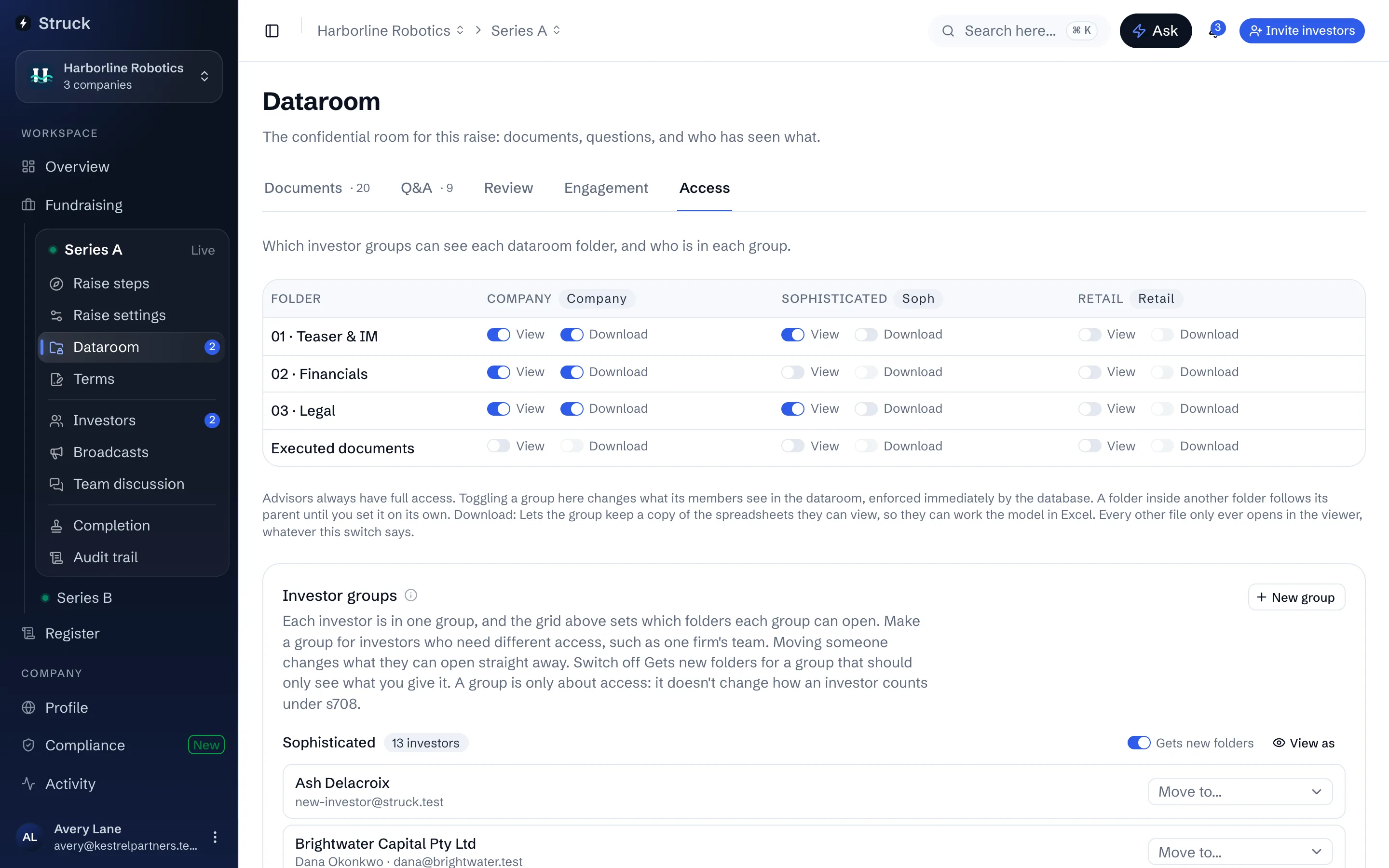
Open the Access tab. It is a grid of investor groups against folders, and each cell switches View and Download. Advisors and the company always have full access. Restricted and Staff only chips on a folder tell you at a glance where a grant is narrow.
For the detail on groups, per-document grants and the NDA gate, read Control who sees what in the dataroom.
Pick the files investors read first
A full room is a lot to walk into. Choose Choose files in the Add a Start here for investors prompt at the top of the room and tick the few files that matter most, such as the summary, the deck and the financial model. Add files beside the heading adds more later, and a file's own menu has Add to Start here too. They appear at the top of the room in that order, and each card's menu lets you add a one-line note, move it earlier or later, or take it off. On an investor's first visit they see Start here on its own, with the rest of the room one click away.
Keep the room current
When a document is revised, use Upload new version from its menu, or drop the new file straight onto the document, rather than uploading a second copy. A file named like one already in the folder, such as SHA v3 next to SHA v2, prompts you to add it as a new version instead. Investors always get the latest version. Version history lists every version with who uploaded it and what changed, and lets the deal team open an earlier version or restore it, which adds it back as a new version so nothing is lost. Engagement shows who has opened what, and Q&A is where investor questions arrive.
Read next
- Start here: the files investors read firstHow it works
- How the dataroom protects documentsHow it works
- Dataroom access by groupHow it works
- The engagement reportHow it works
- Q&A and fair disclosureHow it works